[컴퓨터 이야기] 컴퓨터에 대하여 2편 — 하드웨어와 소프트웨어[Computer Stories] About Computers Part 2 — Hardware & Software
강민보MINBO KANG·2026년 7월 16일July 16, 2026·5분 읽기5 min read
1편에서는 컴퓨터가 무엇인지, 그리고 컴퓨터의 초기 역사를 살펴봤습니다. 이번에는 컴퓨터가 어떻게 동작하는지, 그리고 컴퓨터를 구성하는 두 가지 큰 요소인 하드웨어와 소프트웨어를 알아보겠습니다.
컴퓨터는 명령을 받아 움직인다
컴퓨터는 사용자가 명령을 내리면 그 명령을 처리하고 결과를 보여줍니다. 컴퓨터가 스스로 모든 일을 판단해서 처리하는 것은 아닙니다. 기본적인 흐름은 다음과 같습니다.
입력 → 처리 → 출력
사용자가 명령이나 데이터를 입력하면 컴퓨터가 그것을 처리하고, 처리한 결과를 화면이나 프린터 등을 통해 보여줍니다. 그리고 다시 사용자의 다음 명령을 기다립니다.
최근에는 인공지능이 사람의 질문을 이해하고 스스로 판단하는 것처럼 보이기도 합니다. 하지만 인공지능 역시 사람이 만든 프로그램과 컴퓨터 장치 위에서 작동합니다.
하드웨어란 무엇인가?
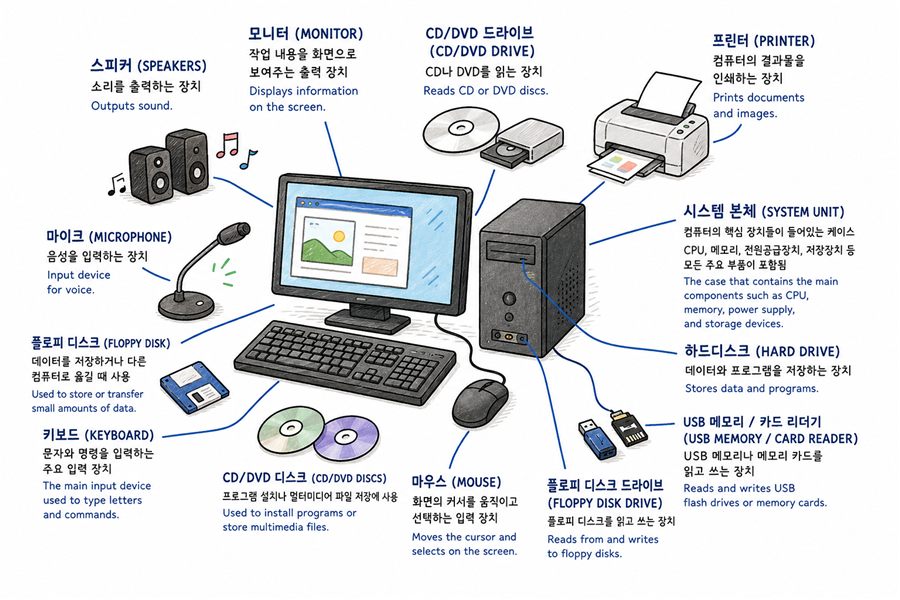
컴퓨터라고 하면 먼저 눈에 보이는 기계를 떠올리게 됩니다. 본체, 모니터, 키보드, 마우스처럼 직접 만질 수 있는 물리적인 장치를 하드웨어라고 합니다. 영어로는 Hardware라고 씁니다.
하드웨어는 크게 다음과 같이 나누어 생각할 수 있습니다.
입력장치
처리장치
출력장치
저장장치
먼저 입력장치란 컴퓨터에 명령이나 정보를 전달하는 장치입니다. 키보드, 마우스, 스캐너, 카메라, 마이크 등이 입력장치에 해당합니다. 스마트폰의 터치 화면도 대표적인 입력장치입니다. 손가락으로 화면을 누르거나 움직이면 스마트폰에 명령을 전달하기 때문입니다.
출력장치는 컴퓨터가 처리한 결과를 사용자에게 보여주는 장치입니다. 화면을 보여주는 모니터, 종이에 내용을 인쇄하는 프린터, 소리를 들려주는 스피커 등이 출력장치입니다.
컴퓨터에 명령이나 정보를 전달하면 입력이고, 컴퓨터가 처리한 결과를 사람에게 전달하면 출력이라고 생각하면 됩니다.
소프트웨어란 무엇인가?
컴퓨터의 본체나 모니터처럼 직접 만질 수 있는 장치를 하드웨어라고 했습니다. 그렇다면 소프트웨어는 무엇일까요?
컴퓨터에게 어떤 일을 시키기 위해 만든 명령과 프로그램을 소프트웨어라고 합니다. 문서를 작성하는 프로그램, 인터넷을 사용하는 브라우저, 사진을 보는 프로그램, 게임, 회계 프로그램 등이 모두 소프트웨어입니다.
소프트웨어는 크게 운영체제와 응용 프로그램으로 나누어 생각할 수 있습니다.
운영체제란 무엇인가?
컴퓨터에서 가장 중요한 소프트웨어 중 하나가 운영체제입니다. 영어로는 Operating System이라고 하며, 줄여서 OS라고 부릅니다.
운영체제는 컴퓨터 전체를 관리하는 기본 프로그램입니다. 키보드와 마우스의 입력을 받아들이고, 화면에 내용을 보여주며, 파일을 저장하고, 여러 프로그램이 실행되도록 관리합니다.
나라에 여러 기관과 제도가 있어 사회 전체가 움직이는 것처럼, 컴퓨터에서는 운영체제가 여러 장치와 프로그램을 관리한다고 생각하면 됩니다.
대표적인 컴퓨터 운영체제에는 다음과 같은 것들이 있습니다.
Microsoft Windows
Apple macOS
Linux
스마트폰에도 운영체제가 있습니다.
삼성전자 등의 스마트폰에서 많이 사용하는 Android
Apple의 아이폰에서 사용하는 iOS
여기서 Mac은 Apple이 만드는 컴퓨터를 뜻하고, 그 컴퓨터에서 사용하는 운영체제의 이름이 macOS입니다. Linux는 UNIX의 개념과 구조에 영향을 받아 독립적으로 개발된 운영체제이며, macOS는 UNIX 기반 운영체제입니다.
응용 프로그램이란 무엇인가?
운영체제 위에서 사용자가 실제 작업을 하기 위해 실행하는 프로그램을 응용 프로그램이라고 합니다. 영어로는 Application이라고 하며, 줄여서 App이라고도 부릅니다.
문서를 작성하는 한글이나 워드, 계산 작업을 하는 엑셀, 인터넷을 사용하는 크롬과 엣지, 스마트폰에서 사용하는 카카오톡 등이 모두 응용 프로그램입니다.
운영체제를 물이라고 생각하고 응용 프로그램을 물고기라고 생각해 보겠습니다. 민물고기는 바닷물에서 살기 어렵고, 바닷물고기는 민물에서 살기 어렵습니다. 응용 프로그램도 보통 특정 운영체제에 맞게 만들어집니다.
Windows용 프로그램이 macOS에서 바로 실행되지 않거나, 아이폰용 앱이 Android 스마트폰에서 실행되지 않는 이유가 여기에 있습니다. 물론 요즘에는 여러 운영체제에서 함께 사용할 수 있는 프로그램도 많습니다. 하지만 기본적으로 운영체제가 다르면 사용하는 프로그램도 달라질 수 있다고 이해하면 됩니다.
개인용 컴퓨터의 등장
지금 우리가 사용하는 개인용 컴퓨터는 1970년대 중반부터 본격적으로 등장하기 시작했습니다. 1977년에는 Apple II를 비롯하여 여러 개인용 컴퓨터가 출시됐습니다.
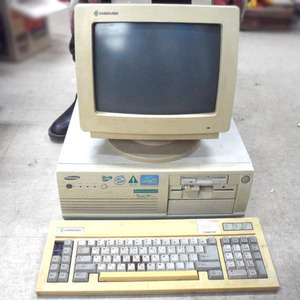
1981년 IBM이 IBM Personal Computer, 즉 IBM PC를 출시하면서 개인용 컴퓨터가 기업과 사무실에 빠르게 보급됐습니다. 이후 IBM PC와 호환되는 수많은 컴퓨터가 등장했습니다. 우리나라에서는 과거 IBM PC 호환 컴퓨터를 줄여서 'IBM PC' 또는 '아범'이라고 부르기도 했습니다.
현재 우리가 일반적으로 사용하는 Windows 컴퓨터도 이러한 PC의 발전 과정과 연결돼 있습니다.
우리가 이전에 봤던 기억이 있을 것이다.
3편에서는 파일을 저장하는 저장장치와 컴퓨터의 핵심 부품인 CPU, RAM에 대해 알아보겠습니다.
In Part 1 we covered what computers are and their early history. This time we'll look at how computers actually work, and explore the two key building blocks: hardware and software.
Computers follow commands
A computer does what you tell it to do. It doesn't make independent judgments on its own. The basic flow looks like this:
Input → Processing → Output
You give the computer a command or some data (input), the computer processes it, then delivers the result through a screen, printer, or speaker (output). Then it waits for your next command.
Modern AI can seem like it understands questions and thinks for itself — but even AI runs on programs written by people, on computer hardware made by people.
What is hardware?
When people think "computer," they usually picture the physical machine. The parts you can physically touch — the tower, monitor, keyboard, mouse — are called hardware.
Hardware generally falls into four categories:
Input devices
Processing unit
Output devices
Storage devices
Input devices send commands and information to the computer. Keyboards, mice, scanners, cameras, and microphones are all input devices. A smartphone's touchscreen is also an input device — tapping or swiping sends commands to the phone.
Output devices deliver the computer's results back to you. Monitors show the picture, printers put content on paper, and speakers play sound.
The simple way to remember it: sending information to the computer is input; receiving results from the computer is output.
What is software?
We just described hardware as the physical stuff you can touch. So what's software?
Software is the set of programs and instructions that tell a computer what to do. Word processors, web browsers, photo viewers, games, accounting programs — all of these are software.
Software breaks down into two broad types: operating systems and applications.
What is an operating system?
The most important piece of software on any computer is the operating system, often shortened to OS.
The OS manages the entire computer. It handles keyboard and mouse input, displays content on the screen, manages files, and keeps all your programs running smoothly.
Think of the OS like a country's government and institutions — the system that keeps everything else functioning. The OS plays that role for your computer's devices and programs.
Common computer operating systems include:
Microsoft Windows
Apple macOS
Linux
Smartphones have operating systems too:
Android — used in Samsung and most other smartphones
iOS — used in Apple's iPhone
A quick note: "Mac" refers to Apple's computers; macOS is the operating system that runs on them. Linux was developed independently but was influenced by UNIX concepts; macOS is also UNIX-based.
What are applications?
Programs that run on top of the operating system — the ones you actually use to get things done — are called applications, or apps for short.
Microsoft Word, Excel, Chrome, Edge, KakaoTalk — all of these are applications.
Here's an analogy: think of the OS as water, and apps as fish. Freshwater fish can't survive in the ocean, and saltwater fish struggle in fresh water. In the same way, most apps are built for a specific OS.
This is why a Windows program doesn't run on a Mac directly, and why an iPhone app won't work on an Android phone. That said, many modern apps are available across multiple platforms — web apps, cross-platform software, and so on. But as a starting point, know that different operating systems generally mean different apps.
The rise of the personal computer
The personal computer as we know it began to take shape in the mid-1970s. In 1977, Apple II and several other personal computers hit the market.
In 1981, IBM launched the IBM Personal Computer — known simply as the IBM PC — which quickly spread to businesses and offices everywhere. Countless IBM-compatible computers followed.
The Windows computers most of us use today are direct descendants of that era of PC development.
A sight many of us will remember from somewhere.
In Part 3, we'll look at storage devices — where your files actually live — and the core components CPU and RAM.
댓글Comments