[컴퓨터 이야기] 컴퓨터에 대하여 3편 — 저장장치와 핵심 부품[Computer Stories] About Computers Part 3 — Storage & Key Components
강민보MINBO KANG·2026년 7월 16일July 16, 2026·5분 읽기5 min read
1편에서는 컴퓨터의 역사를, 2편에서는 하드웨어와 소프트웨어를 살펴봤습니다. 이번에는 데이터를 보관하는 저장장치와 컴퓨터의 핵심 부품인 CPU, RAM을 알아보겠습니다.
저장장치란 무엇인가?
하드웨어에서 빠뜨릴 수 없는 것이 저장장치입니다. 저장장치는 문서, 사진, 영상, 프로그램과 같은 데이터를 보관하는 장치입니다.
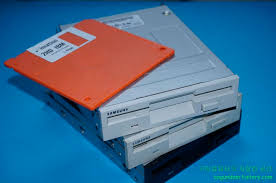
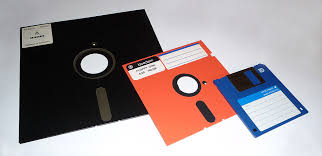
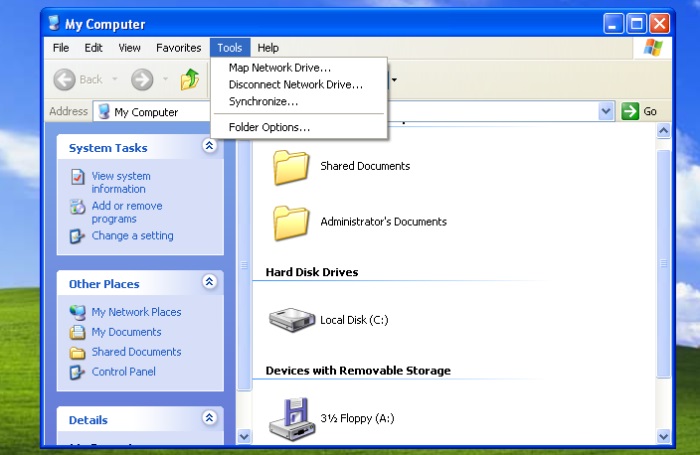
과거에는 플로피디스크 또는 디스켓이라는 저장매체를 많이 사용했습니다. 디스켓을 디스켓 드라이브에 넣어 데이터를 읽거나 저장했습니다.
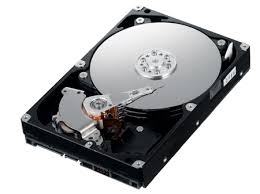
이후에는 더 많은 데이터를 저장할 수 있는 하드디스크가 널리 사용됐습니다. 하드디스크는 영어로 Hard Disk Drive라고 하며, 줄여서 HDD라고 합니다.
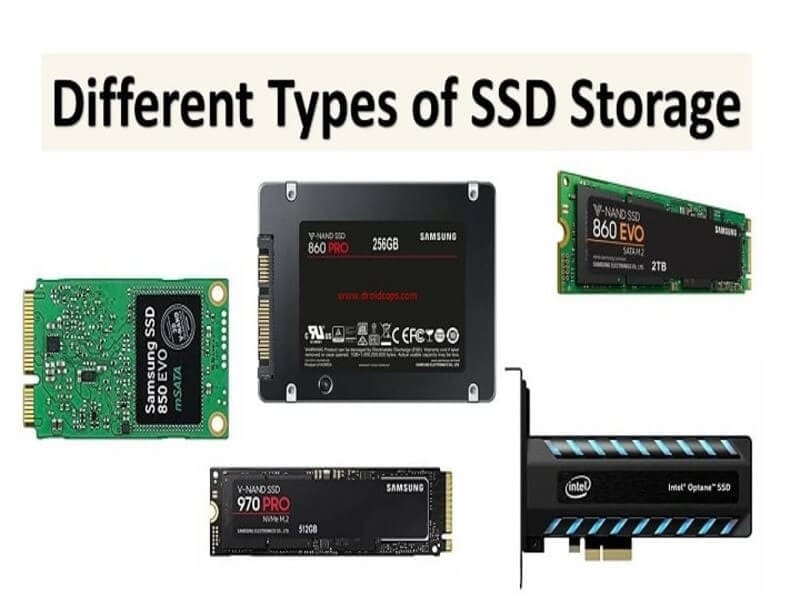
최근 컴퓨터에는 HDD보다 빠르고 소음이 적은 SSD가 많이 사용됩니다. SSD는 Solid State Drive의 약자입니다.
운영체제와 사용자가 작성한 문서, 사진, 프로그램 등은 일반적으로 HDD나 SSD에 저장됩니다. 컴퓨터의 전원을 껐다가 다시 켜도 파일이 남아 있는 이유는 저장장치에 자료가 보관돼 있기 때문입니다.
C드라이브는 왜 C일까?
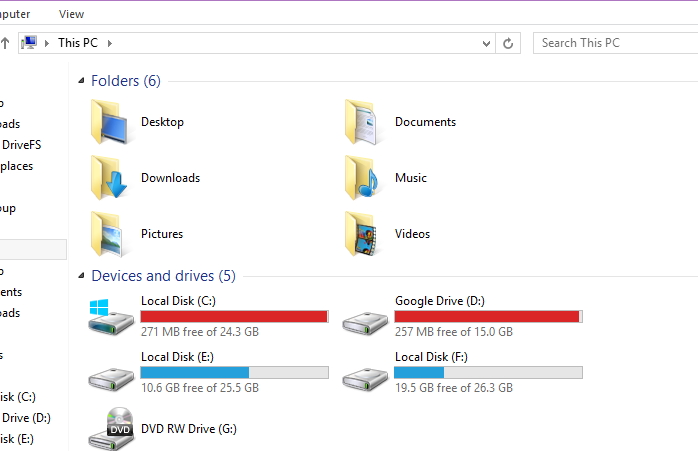
Windows 컴퓨터에서는 저장장치에 알파벳을 붙여 구분합니다. 흔히 C드라이브, D드라이브라는 말을 들어 보셨을 것입니다.
과거의 개인용 컴퓨터에는 플로피디스크 드라이브가 중요한 저장장치였습니다. 첫 번째 플로피디스크 드라이브에는 A를, 두 번째 플로피디스크 드라이브에는 B를 사용했습니다. 이후 하드디스크가 보급되면서 그다음 글자인 C가 하드디스크에 배정됐습니다.
그 전통이 지금까지 이어져 Windows가 설치된 기본 저장장치를 일반적으로 C드라이브라고 부릅니다. 현재는 컴퓨터의 구성과 설정에 따라 D, E, F 등 다른 글자가 배정될 수 있습니다. 또한 A와 B도 현재는 필요에 따라 다른 저장장치에 사용할 수 있습니다.
CPU와 RAM
컴퓨터를 구입할 때 CPU와 RAM이라는 말을 한 번쯤 들어 보셨을 것입니다.
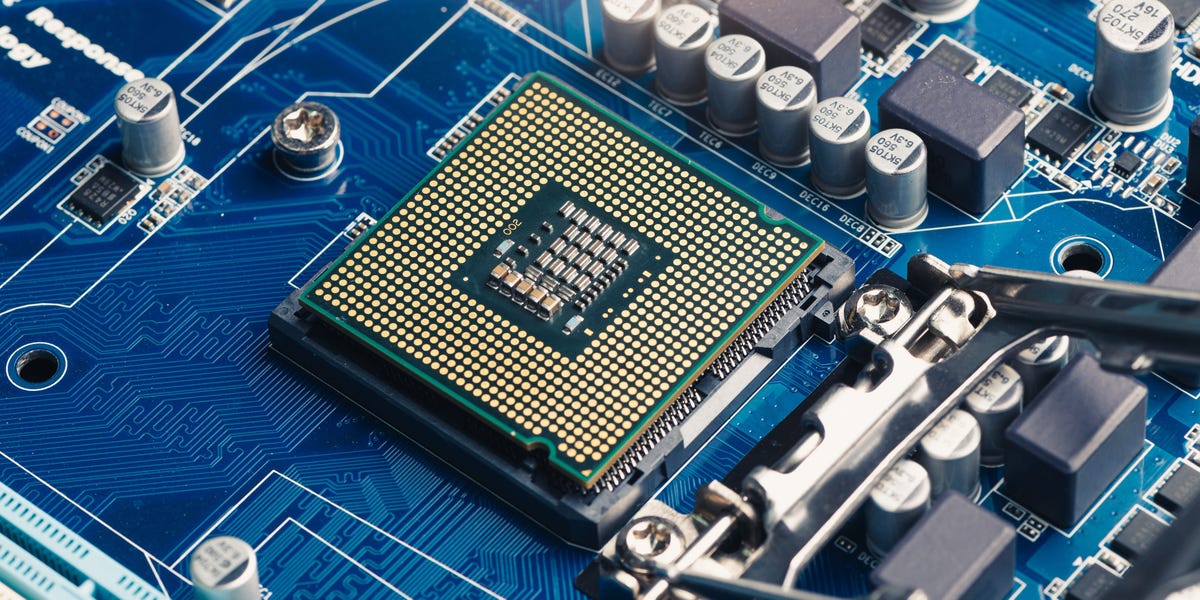
먼저 CPU는 Central Processing Unit의 약자이며, 우리말로는 중앙처리장치라고 합니다.
CPU는 컴퓨터의 명령을 실제로 처리하는 핵심 부품입니다. 쉽게 비유하면 CPU는 책상에서 일을 처리하는 작업자와 같습니다. CPU의 성능이 좋다는 것은 작업자가 일을 빠르게 처리할 수 있다는 뜻으로 이해하면 됩니다.
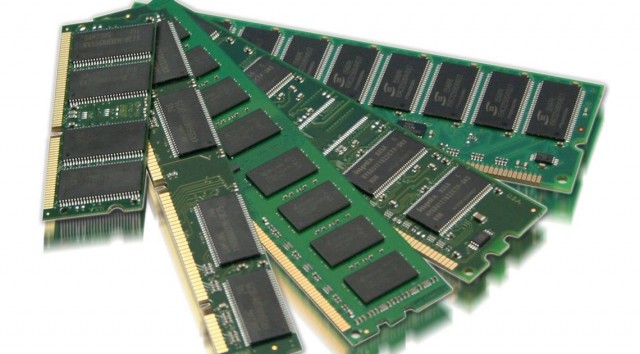
RAM은 Random Access Memory의 약자입니다. RAM은 컴퓨터가 현재 처리하고 있는 작업과 데이터를 임시로 올려놓는 공간입니다.
RAM은 작업자가 사용하는 책상이라고 생각하면 이해하기 쉽습니다. 책상이 작으면 서류 몇 장만 올려놓아도 공간이 부족합니다. 반대로 책상이 크면 여러 서류와 책을 한꺼번에 펼쳐 놓고 작업할 수 있습니다.
RAM의 용량이 크면 여러 프로그램과 데이터를 동시에 올려놓고 작업하기가 편해집니다. 인터넷 창을 여러 개 열고, 문서를 작성하면서, 음악을 듣고, 다른 프로그램까지 함께 사용할 수 있습니다.
다만 RAM에 있는 내용은 임시로 보관됩니다. 컴퓨터의 전원을 끄면 RAM에 있던 내용은 사라집니다. 따라서 작성한 문서는 반드시 SSD나 HDD 같은 저장장치에 저장해야 합니다.
정리하면 다음과 같습니다.
CPU는 일을 처리하는 작업자입니다.
RAM은 작업자가 사용하는 책상입니다.
SSD와 HDD는 자료를 보관하는 서류함입니다.
3편 정리
3편에 걸쳐 컴퓨터가 무엇인지 아주 기초적인 내용을 살펴봤습니다.
컴퓨터는 사용자가 입력한 명령과 데이터를 처리하고 결과를 보여주는 전자 장치입니다.
컴퓨터는 하드웨어(만질 수 있는 장치)와 소프트웨어(프로그램)로 구성됩니다.
운영체제(OS)는 컴퓨터 전체를 관리하고, 응용 프로그램은 그 위에서 실제 작업에 사용됩니다.
저장장치(HDD·SSD)는 데이터를 영구 보관하고, RAM은 현재 작업 내용을 임시로 올려놓는 공간입니다.
CPU는 일을 처리하는 작업자, RAM은 책상, SSD·HDD는 서류함이라고 기억하면 됩니다.
오늘 설명한 내용을 한 번에 모두 외울 필요는 없습니다. 컴퓨터를 직접 사용하다 보면 오늘 들었던 용어들이 하나씩 눈에 들어오기 시작할 것입니다.
다음 시간에는 파일과 폴더, 프로그램 실행, 문서 저장 등 소프트웨어를 중심으로 컴퓨터의 일반적인 사용 방법을 알아보겠습니다.
In Part 1 we covered the history of computers, and Part 2 introduced hardware and software. This time we'll look at storage — where your data lives — and the two key components every computer buyer hears about: the CPU and RAM.
What is storage?
Storage devices are where a computer keeps its data — documents, photos, videos, programs, and everything else.
In the early days of personal computing, people used floppy disks (also called diskettes) to store data. You'd slide a floppy into a disk drive to read or save files.
Floppy disks were eventually replaced by hard disk drives, which could store far more data. A hard disk drive is abbreviated as HDD.
More recently, SSDs — Solid State Drives — have become the standard. They're faster and quieter than HDDs.
Your operating system, documents, photos, and programs are typically stored on an HDD or SSD. That's why your files are still there after you turn the computer off and on again — they're saved on the storage device.
Why is it called the C: drive?
On Windows computers, storage devices are labelled with letters. You've probably heard of C: drive and D: drive.
Early personal computers relied heavily on floppy disk drives. The first floppy drive was assigned the letter A:, the second B:. When hard disks became common, the next letter in line — C: — was given to the hard drive.
That tradition has stuck. The drive where Windows is installed is almost always called C:. Today, D:, E:, F:, and so on are assigned to additional drives depending on your setup. Even A: and B: can technically be used for other devices now.
CPU and RAM
When buying a computer, you'll inevitably hear about the CPU and RAM.
CPU stands for Central Processing Unit.
The CPU is the brain of the computer — the component that actually carries out instructions. A useful analogy: the CPU is the worker sitting at the desk, doing the tasks. A faster CPU means the worker can get through tasks more quickly.
RAM stands for Random Access Memory. RAM is the temporary workspace the computer uses while it's actively processing something.
Think of RAM as the desk itself. A small desk means you can only spread out a few documents before you run out of room and have to put things away. A large desk lets you keep many files open at once.
More RAM means the computer can juggle more programs at the same time — multiple browser tabs, a document you're writing, music playing in the background, and more.
One important difference from storage: RAM is temporary. When you turn the computer off, everything in RAM disappears. That's why you have to save your work to the SSD or HDD — otherwise it's gone.
To summarise:
The CPU is the worker doing the tasks.
RAM is the desk the worker uses.
SSD and HDD are the filing cabinet where everything is kept.
Wrapping up the series
Across these three parts, we've covered the basics of what a computer is.
A computer is an electronic device that processes commands and data from a user and delivers results.
It's made up of hardware (physical components) and software (programs).
The operating system manages the whole machine; applications run on top of it for specific tasks.
Storage devices (HDD/SSD) hold data permanently; RAM holds the current working data temporarily.
CPU = worker. RAM = desk. SSD/HDD = filing cabinet.
There's no need to memorise all of this at once. As you use a computer day to day, these terms will start to click naturally.
Next time, we'll get practical — looking at files and folders, launching programs, and saving documents.
댓글Comments