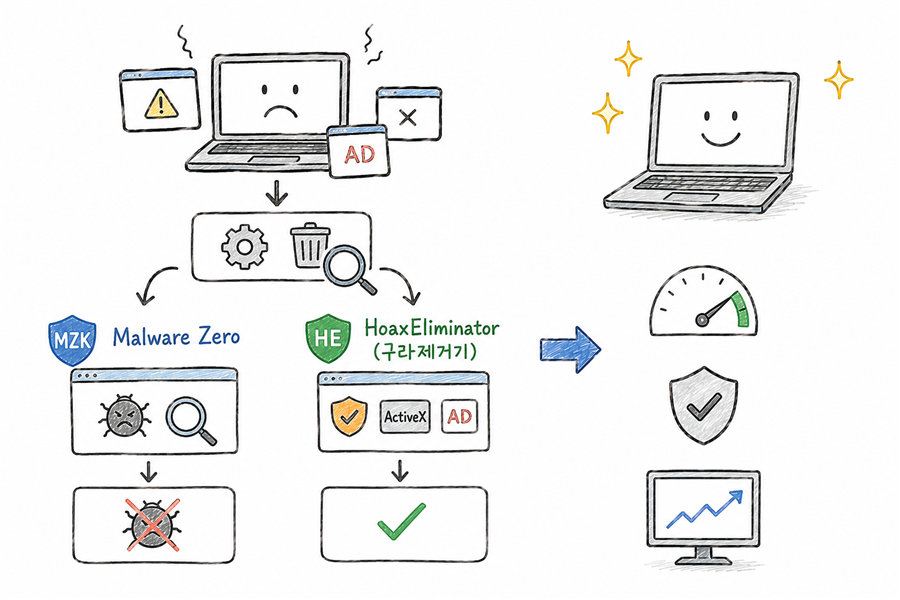
불필요한 보안 프로그램과 액티브엑스 광고 프로그램을 한꺼번에 지워준다. 국내 은행 사이트나 공공기관 사이트를 들락거리다 보면 PC가 어느새 엉망이 되는데, 그럴 때 딱이다.
한국은 아직 액티브엑스에서 완전히 자유롭지 못하다. 레거시 지원 때문이라지만 솔직히 기술적 문제는 아니라고 생각한다. 못 없애는 게 아니라 안 없애는 거다.
대표적인 무료 툴은 이 두 가지다. 포털에서 배포하는 클리너류는 설치하지 말 것을 권한다. 특성상 광고나 부가 연결이 딸려오기 마련이다.
유료 제품도 몇 가지 있지만 이 두 가지만으로도 충분하다고 장담한다. 그 돈이 아깝다면 어학 앱 구독에 쓰시길.
윈도우 자체 튜닝
악성 프로그램을 정리했다면 이번엔 윈도우 자체를 손볼 차례다. 대부분 설치된 상태 그대로 쓰는데, 몇 가지만 바꿔도 체감 속도가 달라진다.
시작 프로그램 줄이기 — msconfig
Win + R 키를 눌러 [실행] 창을 열고, msconfig를 입력한 뒤 [엔터]를 누른다.
시스템 구성 → 서비스 탭에서 모든 Microsoft 서비스 숨기기에 체크한 뒤 모두 사용 안 함으로 설정한다.
시스템 구성 → 시작 프로그램 탭에서 불필요하거나 이름만으로 정체를 알 수 없는 항목은 체크를 해제한다.
regedit에서 직접 수정하시는 분도 있겠지만, 그 정도 고수라면 이 글이 필요 없을 것이다.
시각 효과 끄기 — SystemPropertiesAdvanced
Win + R 키를 눌러 [실행] 창을 열고, SystemPropertiesAdvanced를 입력한 뒤 [엔터]를 누른다.
고급 탭 → 성능 → 설정에서 최적 성능으로 조정을 선택하고, 필요한 항목만 개별로 다시 체크한다.
이때 화면의 가장자리 글꼴 다듬기는 다시 켜두는 게 좋다. 꺼놓으면 바탕화면 아이콘 텍스트가 깨진 것처럼 보인다. 각 항목은 하나씩 토글하면서 확인해 보면 된다.
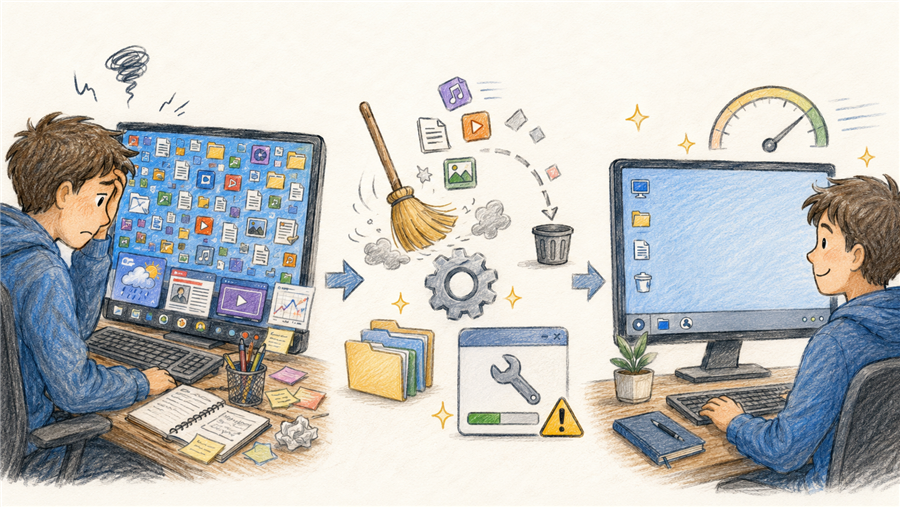
덧붙여, 바탕화면에 아이콘을 너무 많이 두지 말라. 메모리를 잡아먹는 것도 있지만, 나중에 문제가 생겼을 때 복구가 번거롭다. 흔한 경우는 아니지만 아이콘 위치 정보가 꼬이면 문서 찾기도 힘들어진다.
작업 표시줄의 뉴스 피드나 날씨 위젯도 꺼두면 그만큼 가볍다. 구라제거기가 이 부분까지 처리해 주지는 않으니 직접 끄는 수밖에 없다.
불필요한 앱 삭제
Win + R 키를 눌러 [실행] 창을 열고, ms-settings:appsfeatures를 입력한 뒤 [엔터]를 누른다.
설정 → 앱 → 설치된 앱에서 정체를 알 수 없거나 쓰지 않는 앱은 삭제한다. 헷갈리면 이름을 구글에 검색해 보면 된다.
쓰지도 않는 오피스 365 체험판은 삭제한다.
Adobe Acrobat Reader도 지워라. 너무 무겁고 공간을 많이 잡아먹는다. PDF는 크롬이나 엣지에서 바로 열면 훨씬 가볍고 빠르다.
코파일럿, XBOX 관련, 휴대폰 연결 등 쓰지 않는 기본 앱도 과감히 지운다. 나중에 필요하면 다시 설치하면 된다.
알집·알씨·알약 등 알 시리즈는 전부 지워라. ZIP이 필요하면 반디집으로 대체하면 된다. 반디집은 기업도 무료지만, 알집은 기업이 쓰면 라이선스 위반이다.
V3 같은 서드파티 백신도 필요 없다. 윈도우 10 이상이라면 자체 Windows Defender로 충분하다.
마치며
드라이브 여유 공간 관리나 스왑 메모리 설정은 다음 글에서 다루겠다.
느려진 컴퓨터를 새로 사기 전에 이 순서대로 한 번 해보시라.
멀웨어 제로로 악성 스크립트 제거
구라제거기로 불필요한 보안·광고 프로그램 일괄 삭제
msconfig로 시작 프로그램 정리
SystemPropertiesAdvanced로 시각 효과 최소화
설치된 앱에서 쓸모없는 앱 삭제
이 모든 방법을 써봤는데도 여전히 느리다면, 그때 하드웨어를 고민해도 늦지 않다.
This post assumes you're a Windows user.
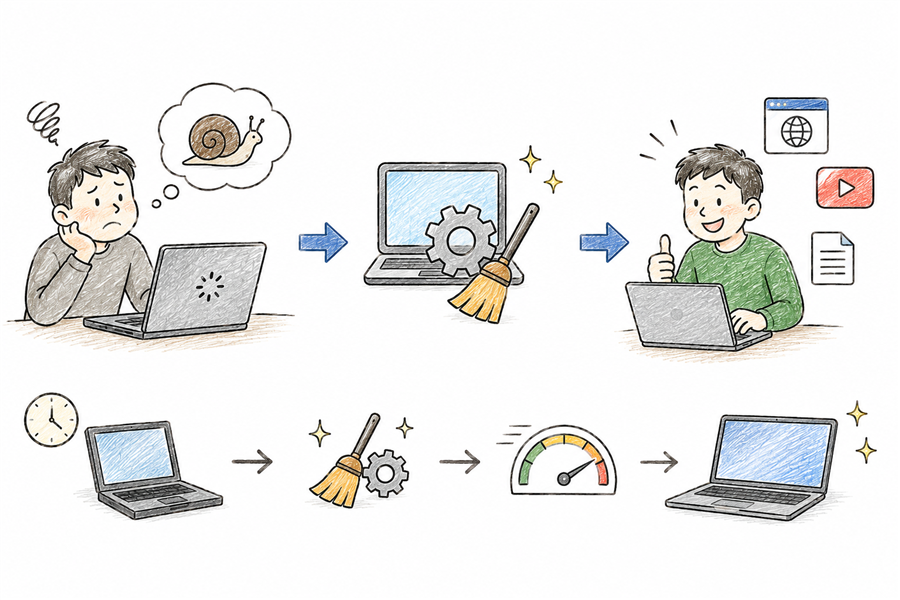
One of the most common complaints I hear is that a PC feels sluggish compared to when it was new. The usual reaction is to assume it's time to buy a new one.
The short answer: try software fixes first, then think about hardware upgrades.
Even a computer from several years ago — or longer — has plenty of power for everyday tasks: writing documents, browsing the web, or watching YouTube. The laptop I'm typing this on is over 15 years old, and it still runs fine.
So forget the hardware for now. Here are the software steps that actually make a difference.
Malware and junk programs that weren't there before
It's surprisingly easy to end up with unwanted programs installed — often without noticing. Hunting them down one by one is tedious and inefficient.
A word of caution about the foreign tools that turn up when you search for help online: many of them scan your PC, find problems, and then demand payment before they'll fix anything. Some are genuinely free, but most shift to a paid model over time.
You could reformat the drive — a clean install is effective — but even with all the guides and migration tools available, reinstalling everything is never as simple as it sounds. Try the tools below first.
MZK is excellent at finding and removing malicious scripts. If your browser keeps redirecting to strange sites, or if odd programs launch at startup and nothing else seems to fix it, this is your last resort — and it usually works.
In my experience helping other people with PC problems, this is the tool I reach for when everything else has failed.
This tool bulk-removes unnecessary security programs and ActiveX adware in one shot. If you've visited Korean banking or authentication sites, your PC has probably accumulated a collection of these. HoaxEliminator cleans them up automatically.
Korea hasn't fully moved away from ActiveX yet. The reasons are political and institutional rather than technical — it's not that it can't be removed, it's that it hasn't been.
Those two free tools are the main ones I recommend. Avoid the cleaner apps distributed by Korean portals — they always come with their own adware and bundled connections.
There are paid tools too, but these two free options will handle what most paid tools offer. Save the money for a language learning app subscription instead.
Tuning Windows itself
Beyond removing junk programs, there are a few Windows settings worth adjusting. Most users run with the defaults straight out of the box. A few small changes go a long way.
Cut down startup programs — msconfig
Press Win + R to open the Run dialog, type msconfig, and press Enter.
Under the Services tab, check Hide all Microsoft services, then click Disable all.
Under the Startup tab, uncheck anything you don't recognise or don't need at startup.
Some people go straight to regedit for this — but if you're comfortable there, you don't need this guide.
Turn off visual effects — SystemPropertiesAdvanced
Press Win + R, type SystemPropertiesAdvanced, and press Enter.
Go to the Advanced tab → Performance → Settings, and choose Adjust for best performance. Then re-enable only the options you actually want.
One to turn back on: Smooth edges of screen fonts. Without it, icon text on the desktop looks rough and hard to read. Toggle options one at a time to see what each one does.
One more thing: don't keep too many icons on the desktop. Each one uses a small amount of memory, and a cluttered desktop makes recovery harder if something goes wrong. In rare cases, corrupted icon position data can make it difficult to find your files.
Also disable any news feeds or weather widgets on the taskbar — they're background processes that quietly consume resources. Tools like HoaxEliminator won't touch these, so you'll need to turn them off yourself.
Remove apps you don't use
Press Win + R, type ms-settings:appsfeatures, and press Enter.
In Settings → Apps → Installed apps, remove anything you can't identify or don't use. When in doubt, search the app name online.
Uninstall any Microsoft 365 trial you're not using.
Adobe Acrobat Reader — remove it. It's bloated and takes up a lot of space. Chrome and Edge both open PDFs natively, and they do it faster.
Copilot, Xbox-related apps, Phone Link — if you don't use them, delete them. You can always reinstall later.
ALZip, ALSee, ALYac and the rest of the "AL" suite — uninstall them all. For ZIP files, use Bandizip instead. Bandizip is free for both personal and commercial use. ALZip is a licence violation for businesses.
Third-party antivirus (like V3) isn't necessary. On Windows 10 and later, Windows Defender provides solid protection on its own.
To wrap up
Topics like managing free disk space and configuring swap memory will be covered in a future post.
When your PC feels slow, run through these before thinking about buying new hardware.
Run Malware Zero (MZK) to remove malicious scripts
Run HoaxEliminator to bulk-remove unwanted security and adware programs
Use msconfig to trim startup programs
Use SystemPropertiesAdvanced to minimise visual effects
Go through Installed Apps and delete anything you don't need
Hardware upgrades are a last resort — only worth considering once you've worked through all of the above and the PC still isn't fast enough.
댓글Comments