[컴퓨터 이야기] 텍스트 에디터 이야기[Computer Stories] Text Editors
FREEWAYFREEWAY·2026년 7월 24일July 24, 2026·5분 읽기5 min read
오늘은 텍스트 에디터에 대해 알아보도록 하겠다.
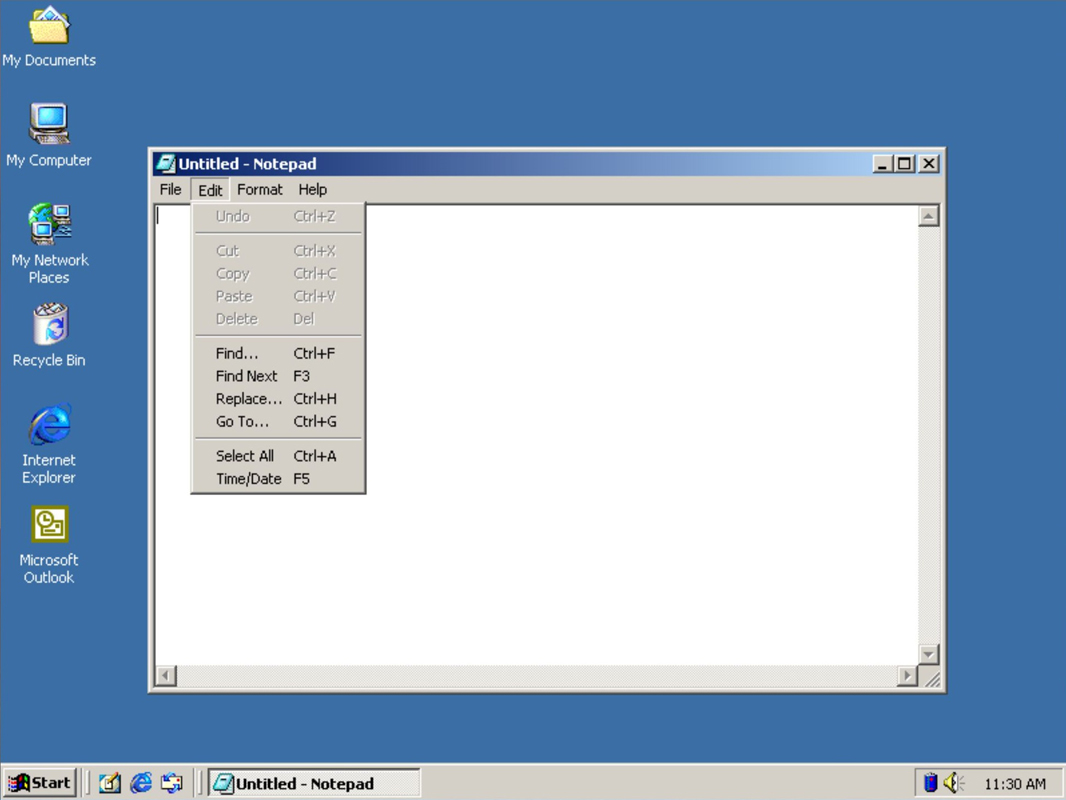
가장 먼저 떠오르는 것은 아마도 윈도우즈에 기본으로 설치되어 있는 메모장일 것이다.
Simple is best라고, 가장 간단하면서도 사용하기 쉽다.
하지만 문제가 있으니, 과거 메모장은 큰 파일을 열지 못했다. 64KB까지밖에 못 읽었고, XP에 와서야 32MB까지 늘어났었다.
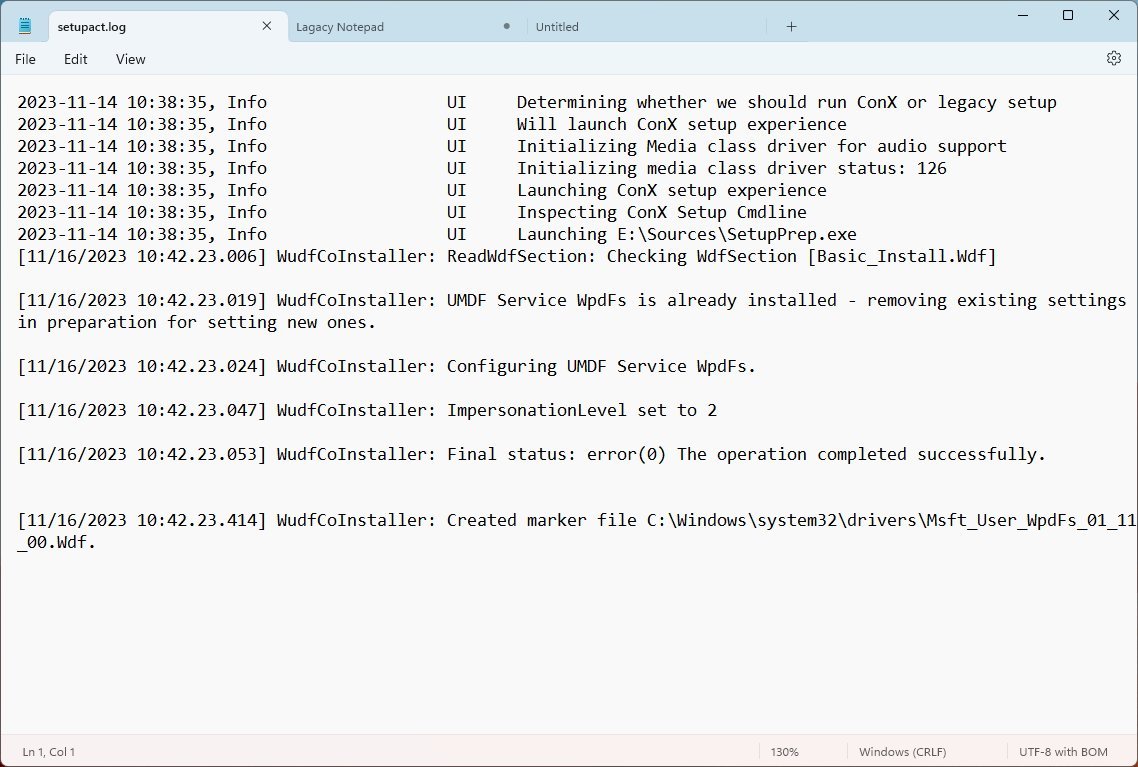
윈 11에서는 1GB까지 지원하고 이전 세션 복구도 지원한다. 심지어 요즘 업데이트되어 탭과 태그 기능까지 지원한다. 뭐, 여전한 아쉬움은 파일을 통째로 메모리에 올리기에 메모리 문제가 생길 수 있다는 점이다.
"윈도우, 맥, 휴대폰 어디서나 동기화되는 메모장은 조만간 공개토록 하겠다"
TextPad
과거 PC통신 시절, 중국 보따리상 IP(Information Provider) 사업을 하는 직장에서 사용하던 에디터가 있었다. 텍스트 복사를 막으려고 정보를 카드 형식의 이미지로 제공했었는데, 그때 텍스트 편집할 때 사용하던 툴이다.
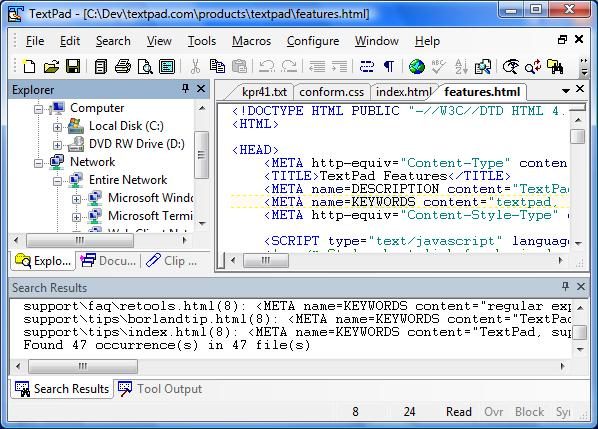
지금도 업데이트되고 있고 간간히 구독하라는 팝업이 뜨지만 여전히 무료로 사용이 가능하다. Notepad++이나 UltraEdit과 비교해 보면 사용성이 훨씬 낫다. 특히 행 앞에 스페이스가 많을 때 여러 행을 한꺼번에 선택해서 처리할 때 편하다.
Visual Studio Code
그것 아는가, 예전 초창기에는 윈도우즈 기본 메모장으로 홈페이지를 작성했었다는 것을? 뭐 그 뒤에 매크로미디어의 드림위버 같은 WYSIWYG(What You See Is What You Get) 에디터에 밀려나긴 했었지만.
약간 옆길로 샜는데, 구글링하면 많은 에디터를 찾을 수 있겠지만…
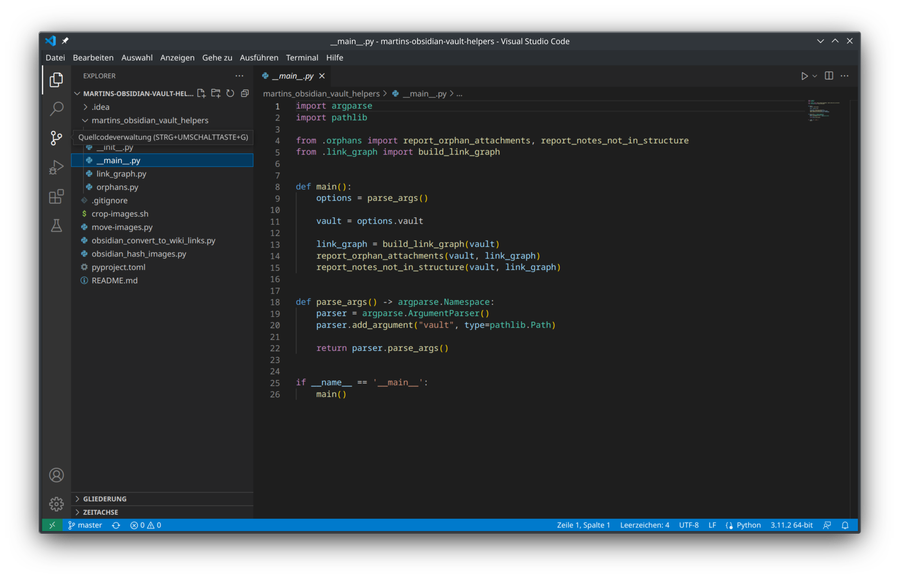
Visual Studio Code도 텍스트 에디터로 사용해 보시라.
나 같은 경우 Visual Studio Code 이전에는 Sublime Editor를 사용했다가 지금은 VS Code에 정착했다.
개발자가 아니더라도 한번은 사용해 보시라. 특히 엑셀 같은 오피스 프로그램에서 매크로나 VBA를 사용해서 만들 때 사용하면 코딩 실수도 적어지고 효율도 높아질 것이다. MS Office에 내장된 편집기는 코드가 길어질 때 변수 구분 등이 힘들다. 적당히 왔다갔다 하면서 사용하시면 된다.
메모장 소소한 팁
마지막으로 메모장 사용하는 소소한 팁 몇 가지를 남긴다.
요즘 인터넷을 서핑하다 보면 글을 복사할 때가 있을 것이다. 붙여넣기하면 스타일까지 복사되어 사용하기 난감할 때가 있을 텐데, 이럴 때는 간단한 방법으로 메모장에 복사하면 스타일 없이 붙여넣기가 된다.
또 한 가지, 가끔 한/영 키가 어떤 프로그램들에서 안 먹힐 때가 있을 터인데, 이럴 때도 메모장에서 한/영을 변환해서 작성하고 복사 및 대상 창에 붙여넣기 하면 해결된다.
포스트잇 같은 프로그램 사용하지 말고 기본 메모장 사용이 유리하다. 만약 사용하고 싶으시다면 이 사이트의 월페이퍼에서 포스트잇을 사용하는 것도 추천해 드린다.
Today, let's talk about text editors.
The first thing that comes to mind is probably Notepad — the text editor that ships with every copy of Windows.
Simple is best. It's about as straightforward and easy to use as it gets.
There was one big problem, though: old Notepad couldn't open large files. It topped out at 64 KB, and it wasn't until Windows XP that the limit was raised to 32 MB.
Windows 11 Notepad now supports files up to 1 GB, restores previous sessions, and has even gained tab and tag support in recent updates. The one lingering gripe: it loads the entire file into memory at once, which can cause problems with very large files.
"A Notepad that syncs across Windows, Mac, and your phone — that's something I'll be sharing soon."
TextPad
Back in the days of PC communication networks, I worked at a company that ran a Chinese import information service — an IP (Information Provider) business. To prevent text copying, we delivered content as card-style images, and the tool we used for editing all that text was TextPad.
It's still being updated today, and it occasionally shows a popup asking you to subscribe, but it remains free to use. Compared to Notepad++ or UltraEdit, the usability is noticeably better — especially when you need to select and process multiple lines that start with lots of leading spaces.
Visual Studio Code
Did you know that in the early days of the web, people actually built websites using plain old Notepad? It didn't last long before WYSIWYG (What You See Is What You Get) editors like Macromedia Dreamweaver took over, but it happened.
Anyway, getting back on track — there are plenty of editors out there if you search for them, but…
Give Visual Studio Code a try as a text editor.
I used Sublime Text before VS Code and eventually made the switch — it's been my home ever since.
Even if you're not a developer, it's worth trying at least once. If you write Excel macros or VBA, editing your code in VS Code makes a real difference: fewer mistakes, better readability. The built-in editor in MS Office struggles with longer scripts — variable names blur together. Using both side by side works well.
A few handy Notepad tips
To close out, here are a couple of small but useful Notepad tricks.
When you copy text from a webpage and paste it somewhere, the formatting often comes along for the ride — fonts, colors, sizes, all of it. A quick fix: paste into Notepad first, then copy from there. You get clean, plain text with no styles attached.
Another one: if you use an IME (Input Method Editor) — common for East Asian languages like Korean, Japanese, or Chinese — you may run into programs where the language toggle key stops responding. A quick workaround: open Notepad, switch your input mode there, type what you need, then copy and paste it into the target window.
A dedicated sticky-note app is often overkill — plain Notepad does the job better. That said, if you want something a bit more visual, the wallpaper on this site has a built-in sticky note feature worth trying.
댓글Comments