찾은 파일의 확장자를 원래 프로그램이 쓰는 확장자로 바꾸고 열어보면 내용이 살아 있는 경우가 있다.
Office 임시 파일 위치
실제로 Office 계열은 이 방식으로 복구되는 경우가 꽤 많다.
Word: %AppData%\Microsoft\Word\ 안에 ~WRL####.tmp 형태로 저장됨
Excel: %AppData%\Local\Microsoft\Office\UnsavedFiles\ (Excel 2010 이상, 자동복구 미저장 파일)
자동복구본 공통: Word는 확장자 .asd, Excel은 .xar 형태로 위 경로들에 남음
%AppData%는 탐색기 주소창에 그대로 입력하면 해당 폴더로 바로 이동한다.
참고로 ~$파일명.docx처럼 물결표로 시작하는 숨김 파일이 보일 수 있는데, 이건 파일 잠금 표시용이라 내용이 없는 경우가 많다. 진짜 복구 후보는 .tmp나 이름이 무작위인 파일들이다.
주의사항
숨김 항목 보기를 켜야 한다 — 위 경로들과 파일들은 기본적으로 숨김 처리되어 있다. 탐색기 → 보기에서 숨김 항목을 체크해야 보인다.
원본을 복사해두고 사본으로 테스트한다 — 확장자를 바꾸기 전에 파일을 복사해두는 것이 안전하다. 확장자가 한 번에 맞지 않을 수 있어서 여러 개를 시도해봐야 할 때도 있다.
모든 상황에서 통하는 방법은 아니지만, 포기하기 전에 한 번쯤 시도해볼 만하다.
Most people have been there at least once.
You're deep into a Word document, Excel spreadsheet, or PowerPoint deck — then the program crashes, the power cuts out, or the computer restarts itself. The file you hadn't saved is gone.
The method below doesn't work every time, but I've personally recovered files this way more than once, and I've rescued a few days' worth of a colleague's work with it too.
How it works: the temporary file is still there
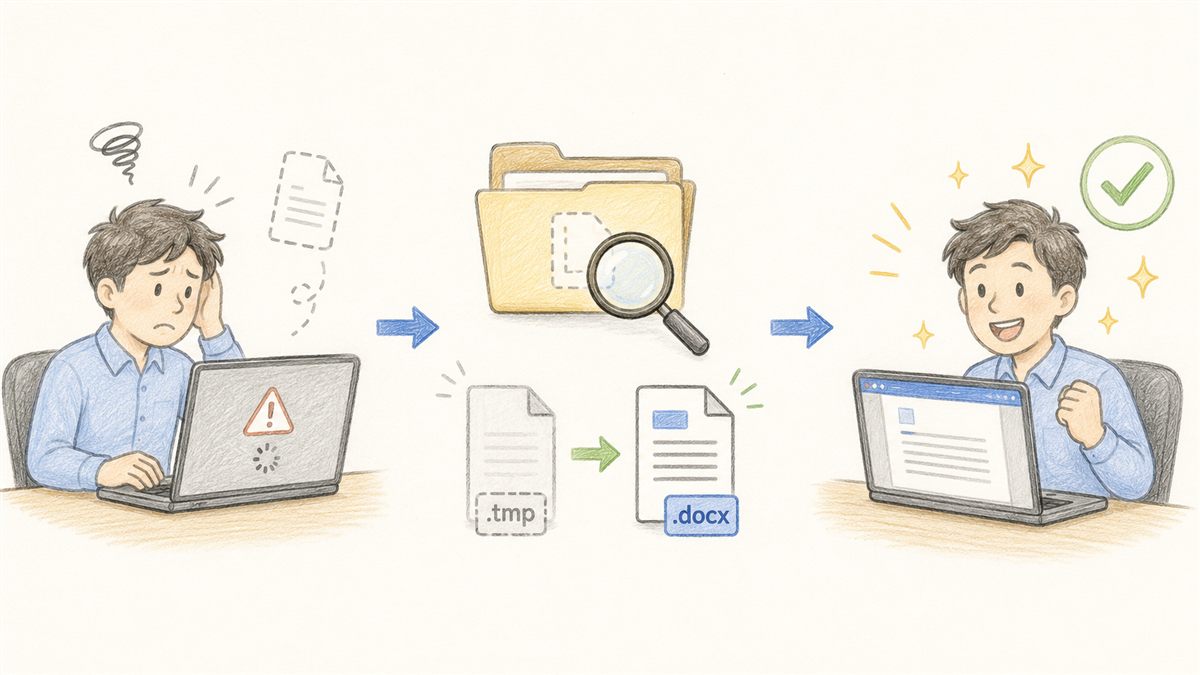
Most business applications save your work periodically to a temporary file in the background. When the program closes normally, it cleans up these temp files. But when it crashes or gets killed unexpectedly, those files are often left behind.
In other words, your work may not be gone — it could be sitting somewhere under a different file extension.
How to find it
Look in the installation folder of the application that crashed, or in its temporary file folder. Among files with a .tmp extension or unfamiliar random names, look for one whose last modified time matches when you were working.
Once you find a candidate, rename it to the extension the original program uses and try opening it. If the contents are there, you've recovered your file.
Office temporary file locations
Office applications in particular are good candidates for this approach.
Word: %AppData%\Microsoft\Word\ — look for files named ~WRL####.tmp
Excel: %AppData%\Local\Microsoft\Office\UnsavedFiles\ (Excel 2010 and later, unsaved auto-recovery files)
Auto-recovery files: Word saves these with a .asd extension; Excel uses .xar — check the paths above
You can type %AppData% directly into the File Explorer address bar and it will take you straight to that folder.
You may also spot files starting with a tilde — like ~$filename.docx. These are lock files that Office creates while a document is open; they usually contain no recoverable content. The real recovery candidates are the .tmp files and the randomly named ones.
A few things to keep in mind
Show hidden items first — The folders and files mentioned above are hidden by default. In File Explorer, go to View and check Hidden items to make them visible.
Copy before you rename — Make a copy of the temp file before changing its extension. The right extension isn't always obvious on the first try, and you may need to test a few options.
It won't work in every situation, but it's worth trying before you give up entirely.
댓글Comments